


If you’re a home worker, you need tips for moving a home office that keep your income safe, not just your furniture. To do so, you’ll need to know the practical steps to save your work, organize your tech, and schedule everything so you’re back online without your clients noticing you left.
HireAHelper has helped hundreds of thousands of people complete their move, including those with home offices. We’ve compiled a guide that will help you handle your expensive electronics, messy nests of cables, and deadlines that won’t pause just because you’re on the road for a move.
Table of Contents
Why Moving a Home Office Requires a Different Approach
Moving a home office requires a packing and relocating process that is unlike other rooms in your home. After all, you’re protecting your income, not just moving boxes.
Household moves usually focus on getting things from point A to point B without breaking anything. But if you do end up breaking a dinner plate, you can buy a new one for a few dollars. If you break a monitor or lose a file, you lose money and possibly trust from your employers or clients.
That’s why planning matters more than speed here. Tailor your move to your setup based on your office type and working needs:
- Solo laptop worker: You have it the easiest, but there are still some things to consider. Your main focus is getting connected to broadband as soon as you can. You need to know exactly when the connection turns off at the old place and turns on at the new one, so you’ll need to keep up with your utility company’s communications.
- Creative professional: Photographers and editors often have heavy monitors and fragile audio gear. Standard moving boxes won’t protect high-end reference monitors, so you’ll need to invest in specialized ones and pack them with extra care.
- Small business owners: Physical inventory and paper files require a strict system. You can’t fulfill orders if your stock is buried in a random box at the bottom of a stack. You’ll need to have a very robust labeling system as you pack, so look into color-coding or inventory apps to help.
- Shared home office: Partners sharing a workspace need to organize everything well in advance. Knowing who owns each monitor and power strip and where they belong is important when unpacking and setting up in the new office.
Step-by-Step Guide to Moving a Home Office
Our step-by-step guide to moving a home office helps you get back to work quickly using a methodical packing process. Follow it to keep your office organized, your gear safe, and your job on track even during a relocation.
Take Inventory of Your Office Setup

Taking inventory of your office setup helps you spot missing items immediately after the move. Start by creating a master list. You can use a spreadsheet or an app like Sortly to log every piece of hardware and furniture.
While you make your inventory, record the serial numbers for your expensive tech. Having those numbers handy makes filing an insurance claim much easier if something gets lost or broken. You can also determine which high-risk items need special handling.
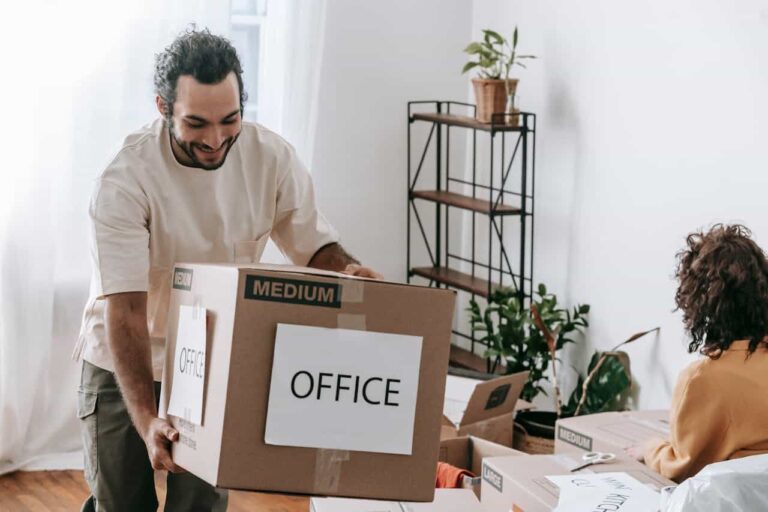
Finally, grab some colorful tape. Use a specific color to label all your office boxes so the movers know these are high-priority items. If you need more help sorting, check out our guide on how to organize your move.
Back Up Data and Protect Digital Assets
Backing up data and protecting digital assets secures your livelihood before you unplug a single cable. Hardware is replaceable, but five years of family photos or business contracts aren’t. We suggest the 3-2-1 rule, where you keep three copies of your data on two different types of media, with one copy stored off-site. Cloud backups work best for moving because the data stays safe no matter what happens to the moving truck. If you use physical external drives, keep them in your personal car or on your person.
“[When it comes to labeling,] ‘Office’ is too vague. Write something like ‘Cables for Main PC’ instead so you know exactly which box to open first.”
Be sure to photograph your cables and setup before dismantling your desk. Take clear pictures of how every cord connects to your computer, dock, and router. You’ll thank yourself when you’re tired and trying to reconnect everything in the new house. Also, remember to fully power down your equipment before packing. Sleep mode isn’t enough for transport.
Decide What to Move Yourself vs. What Movers Can Handle
Deciding what to move yourself vs. what movers can handle usually comes down to a simple rule: “If this box vanishes, can I do my job tomorrow?” If the answer is no, keep it with you. We always recommend moving laptops, hard drives, confidential paper files, and small, expensive tech in your personal vehicle.
Professional movers are great at handling the big stuff. Let them take care of your desk, office chair, filing cabinets, and standard monitors. HireAHelper can also connect you with movers who know how to handle fragile items, so you don’t have to strain yourself lifting a heavy standing desk.
Gather the Right Packing Supplies for Office Equipment

Standard cardboard boxes often fail under the weight of printers or desktop towers, so use the original boxes for your monitors if you still have them. They’re custom-molded to protect your item. For everything else, use heavy-duty, double-walled boxes. In most cases, these are strong enough to hold heavy items without the bottom falling out.
Before you start packing, you should also pick up pink anti-static bubble wrap for your electronics. Standard bubble wrap can generate static electricity and damage computer parts. Make sure to grab whatever you’d need for your labeling system, like colored tape and markers, too.
Pack Your Home Office in Phases
Packing your home office in phases helps you avoid downtime and burnout. Start weeks out by boxing up nonessentials like awards, old reference books, and extra office supplies.
We recommend keeping one hot workstation running until the very last moment. Your laptop, main monitor, and modem should be the last things you pack so you can stay productive.
Managing Moving Day
Make sure to tell the movers which boxes have your fragile electronics and office equipment so they don’t stack heavier boxes on top of them. Do a final sweep of the room before you leave, including checking all wall outlets. People often leave behind surge protectors and charging bricks plugged into the wall.
Make sure you keep your personal tech, like your laptop bag, clearly separated so it doesn’t end up in the truck.
Set Up Your Home Office After the Move
Setting up your home office after the move starts with prioritizing your office boxes so you get back online fast. You should test the utilities before you build your desk. Also, make sure the internet is active, and the power outlets in your new office room actually work.
Then, use your inventory list to check off items as you unpack. If you run into trouble connecting your computer, pull up those photos you took of your cable setup.
A 6-Week Timeline for Moving a Home Office
Using a 6-week timeline for moving a home office keeps things on track. Here’s a week-by-week breakdown:
- Week 6: Shred old documents and recycle broken electronics. Measure your new room to make sure your desk fits.
- Week 5: Start looking for moving help. If you want packing help, now is also the time to book. Review your corporate relocation policy if your employer is paying.
- Week 4: Buy your packing supplies. Order new furniture now if you need it for the new space.
- Week 3: Start your backups. Notify your clients or boss that you might be slow to respond during moving week.
- Week 2: Pack up the books, decor, and extra supplies. Call your internet service provider to confirm the internet installation date.
- Week 1: Pack everything except your hot workstation.
- Moving day: Pack your essential tech in your car. Keep your phone charged.
For a more general overview of a move timeline, see our 6-week stress-free moving checklist.
Common Home Office Moving Mistakes to Avoid
Even with the best laid plans, there can be things you don’t even think about or overlook. Watch out for these slip-ups:
- Packing too early: Keep your router and modem accessible until the morning you leave. You never know when you’ll need to send a quick file.
- Ignoring the cloud: Physical backups can fail or get lost. A cloud backup is your safety net.
- Lazy labeling: “Office” is too vague. Write something like “Cables for Main PC” instead so you know exactly which box to open first.
- Underestimating setup time: Give yourself at least a 24-hour buffer before your first video call. You might need time to troubleshoot the internet or other issues.
Minimizing Work Disruption
Minimizing work disruption is essential because you have bills to pay, and going dark for a week sometimes isn’t an option. We put together some tips for preparing your home office for a move that minimizes the time you’ll be out of contact:
- Schedule your move around meetings: Look at your calendar and avoid moving during your busiest week. If you have a massive deadline, try to finish it before the movers arrive, or ask for an extension ahead of time.
- Know when to pack what: Only pack your secondary monitors and reference materials to start with. Your laptop and active files should stay out until the morning you leave.
- Create a temporary mobile setup: Assume your new home’s internet might not work on day one, and have a backup plan. Make sure your phone plan supports tethering, or buy a dedicated mobile hotspot. Configure your laptop so you can work effectively without your external monitors for a day or two.
- Keep essentials with you: Figure out exactly what needs to stay with you personally so you can do your job for at least a few days. This usually includes your laptop, charger, hotspot, and hard drives. Never put these in the truck.
Personalizing and Maintaining Your New Home Office
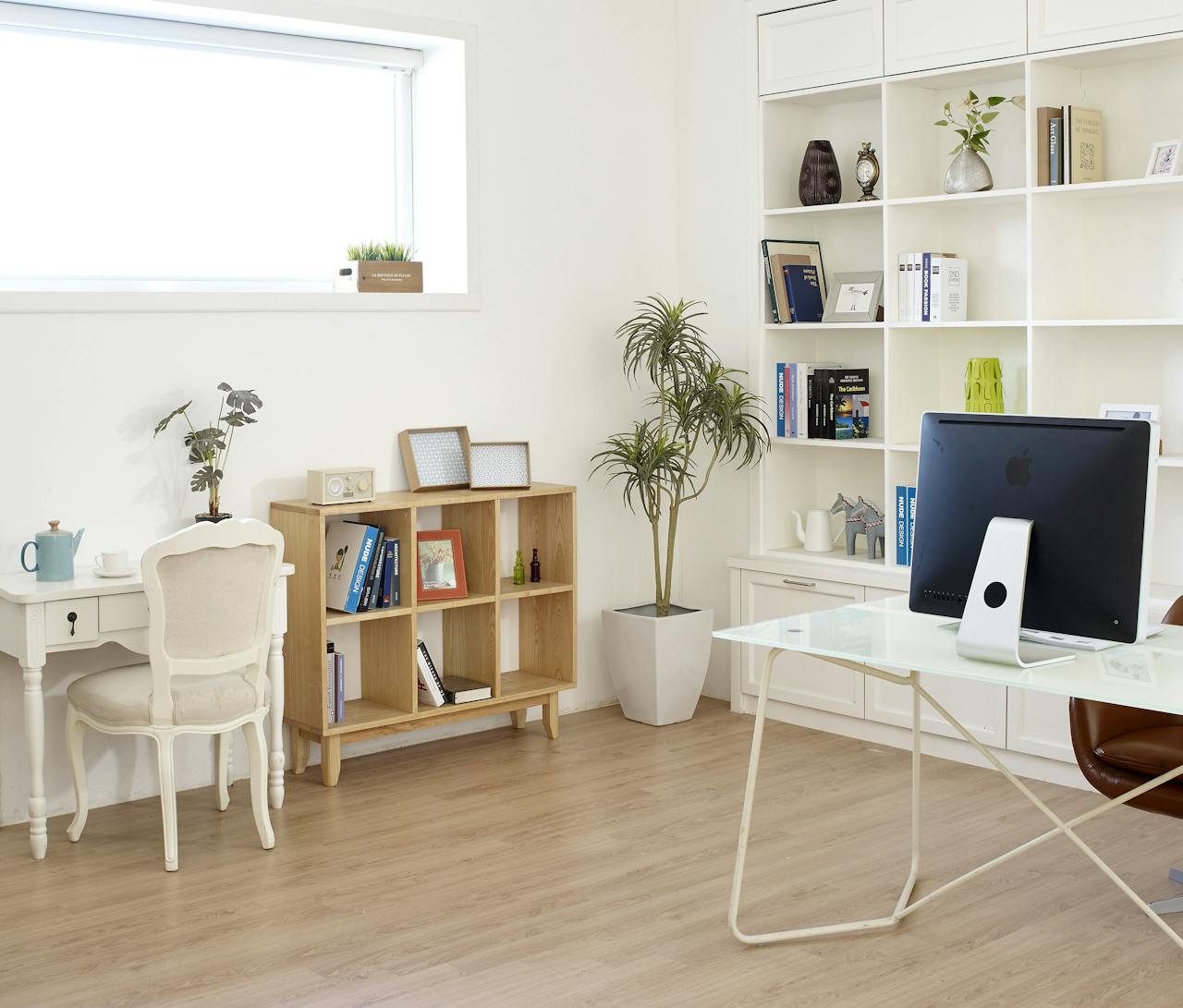
Personalizing and maintaining your new home office helps you make the space yours once the boxes are gone. To get this right, focus on decor that supports focus and well-being. Good lighting and a few plants can make a big difference when it comes to making your new space feel welcoming. To keep clutter off your new desk, create organization systems you can maintain, like drawer organizers.
Don’t be afraid to rearrange your office after a trial period. If the sun glare hits your monitor at 2 pm, move the desk. Adjusting things early helps you settle in and feel at home as soon as possible.
Home Office Moving FAQs
How do I move a home office without missing work?
Moving a home office without missing work requires a phased packing plan. Keep your laptop and internet active until the last possible hour, and schedule your move for a Friday so you have the weekend to set up. You can also use a mobile hotspot for emergency connectivity.
Should I move my computer myself?
Moving your computer yourself is something we highly recommend. We suggest moving laptops, hard drives, and custom-built desktop towers in your personal vehicle. This minimizes vibration damage and reduces the risk of theft.
Can movers pack office electronics?
Movers can pack office electronics if you hire professionals. However, you should back up all data first. HireAHelper can connect you with movers who are experienced in handling fragile items.
How long does it take to set up a home office after moving?
Setting up a home office after moving usually takes 3 to 4 hours if you label your cables and boxed items logically. Fully organizing the room and unpacking decor may take a few days.
Do I need extra insurance for office equipment?
You likely need extra insurance for office equipment because weight usually dictates the price for standard moving coverage. That isn’t enough for a lightweight, expensive laptop, so check your homeowner’s policy or look into third-party moving insurance.
What’s the safest way to move a desktop computer?
The safest way to move a desktop computer starts with removing the graphics card if it’s heavy. Bouncing in a truck can snap the Peripheral Component Interconnect Express (PCLe) slot. If possible, pack the tower in its original box with Styrofoam inserts.